 RigMining
Troubleshooting
How to Update ASIC Miner Firmware Safely: A Checklist Before and After
Firmware can fix faults, but a wrong file or lost settings creates new ones. Match the model, back up, update, then check the result with this checklist.
Should you update at all?
Firmware is the software that runs inside the miner. An update can fix a fault or add features. Bitmain’s release notes for some versions list better protection against malware, a sleep mode and more accurate temperature readings.
An update is also a risk. The wrong file, a lost setting or a power cut in the middle can leave a machine that will not start. So update for a reason, such as a fix you need or a request from support, and not just because a new version exists.
If your miner is hosted with OneMiners
A hosted miner is kept and managed at the hosting site. Ask support before you try to change its firmware. OneMiners’ miner journey page says each miner is given the latest firmware on the test bench before it is linked to your dashboard, and the manuals and firmware library is the place to look up the files for your model. If you think a miner needs a firmware change, tell support the model and serial number through the support request page.
The steps below are for a miner you manage yourself. They follow Bitmain’s published steps for Antminer, and other makers’ screens differ, so follow your own manual too.
Before you start
- Get the file from the maker. Bitmain’s firmware download page says to use its official website, pick the coin and then the model, and download the matching file. Avoid copies from other sites.
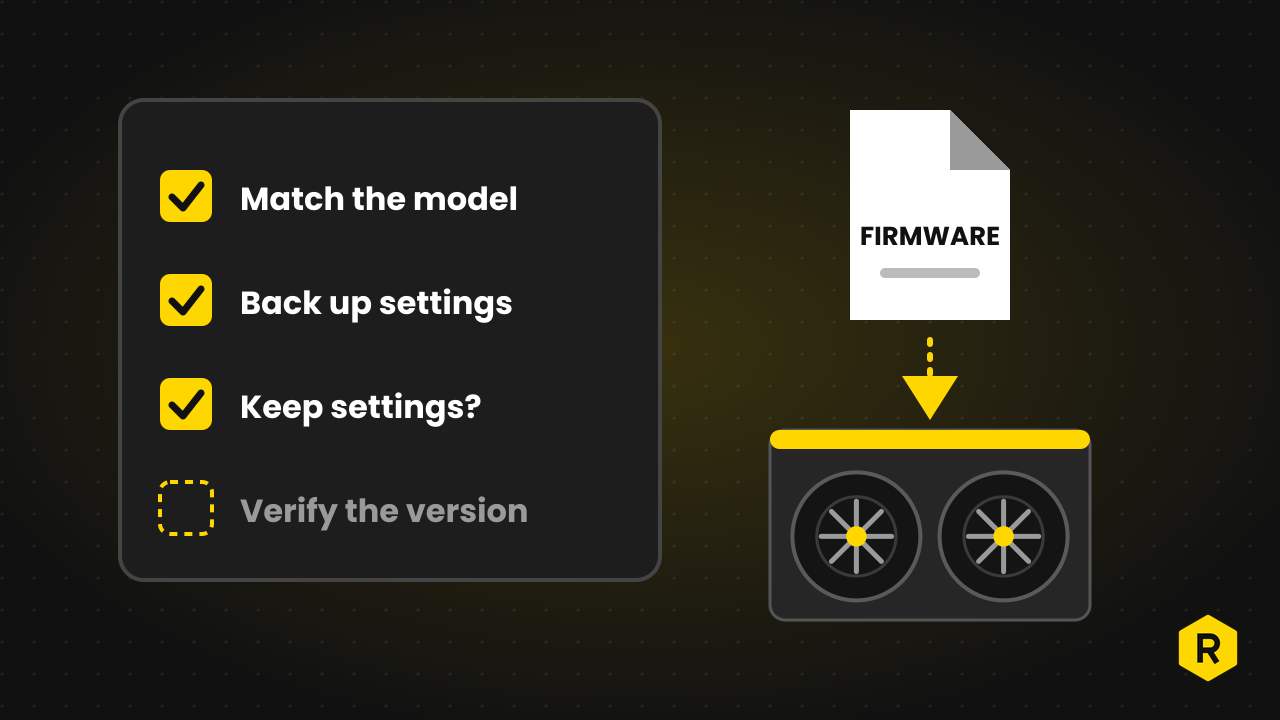
- Match the model exactly. Bitmain stresses that the firmware must be the one for your model, because a wrong file can cause problems. The name of the file appears in the upload box, so compare it with the model before you click.
- Do not unzip it. Bitmain says the downloaded file can be used directly in the web page.
- Back up your settings. Take a screenshot or copy the pool addresses, worker names and network settings. If a reset happens, you will need them.
- Choose when. Pick a time when a short stop in mining is fine and you can watch the machine afterwards.
- Check power. The miner must stay powered on throughout. Bitmain lists a power-off during an upgrade among the cases that need a control board recovery.
The steps
- Open the miner’s page in a browser by typing its IP address. If you do not know it, see the offline checklist.
- In the menu, open the system section and then the firmware upgrade page. Bitmain notes that on some models the option is hidden inside the system drop-down.
- Choose the firmware file with the upload button and check that its name matches the model.
- Decide on keep configuration.
- Ticked: the miner keeps all its settings, including the pool and network configuration, and can resume mining after the update.
- Not ticked: pool and network settings go back to the defaults, as if you reset the machine to factory state. You must enter them again before it will mine.
- Click the upgrade button and wait. Bitmain says the miner restarts, which usually takes about two minutes, and a newer 19-series tutorial says about one minute. The status page should refresh afterwards.
- If you did not keep the settings, the network settings can change and so can the IP address. Find the miner again with IP Reporter, as described in the offline checklist.
After the update
- Check the version. Bitmain’s S19a Pro tutorial says the update worked if the version on the status page is the same as the version you installed.
- Leave it running. For older S9 models, Bitmain says to keep the miner on for about 20 minutes after loading the file, and it shows “System Upgrade Success” when the update is complete.
- Watch the results. Look at hashrate, temperatures and the pool dashboard for the next day. Bitmain’s own advice for large fleets is to test on a small group of 10 to 30 machines and watch them for at least 24 hours before updating the rest. One machine is a small group, so use the same patience.
- Confirm the pool. Check that the worker is back online with the right name.
Things to avoid
- Third-party or unofficial files. Bitmain says that using firmware in ways that go against its operating instructions can void the warranty. Do not use a file from a source you do not trust, and check the warranty terms before you change firmware on a machine that is still covered. The warranty page explains how the OneMiners warranty works.
- Assuming it works everywhere. Bitmain admits that testing cannot cover every setup, which is the reason for the small test group.
- Rolling back. Bitmain notes that some firmware versions block a return to an older version, so do not count on being able to go back.
- Power-off in the middle. If the miner loses power during the update, it may stop starting. Bitmain describes a control board recovery for this, which is a job for support.
- Updating many things at once. Change one thing, check the result, and then change the next.
If the update fails
Do not keep repeating it. Note what the page says, take a screenshot and check whether the miner still starts. If it will not start or cannot be found on the network, contact support with the model, the serial number, the file name you used and the steps you took. Our guide on how to contact OneMiners support lists the channels.
For plain explanations of the words on this page, see firmware, hashrate and the rest of the glossary.
Sources and further reading
Written by the OneMiners team. We sell and host mining machines, so this article links to our own pages where they are relevant, and the sources above are independent. It explains how things work and is not financial advice. Mining carries risk, and prices, rates and features change, so check oneminers.com for current details.